To ensure your dedicated server is setup correctly please follow this guide.
You will need to make sure your router has these two rules setup:
Rule A: Game Traffic
Port Range: 9700 (This is the Default Port ID, You can change this to whatever you prefer)
Protocol: Both TCP and UDP
Local IP: Enter your computer’s internal IP address (found via ipconfig as "IPv4 Address").
Rule B: HTTP/API Traffic
Port Range: 8081
Protocol: TCP/HTTP
Local IP: Enter the same computer IP used above.
We have provided guides for some internet service providers below and will add more.
Click Here for EE Guide
EE Guidelines
- Open a Web Browser: Use any standard browser like Chrome, Firefox, or Edge.
- Enter IP Address: Type your router’s Gateway IP into the address bar.
- Login: Enter your admin credentials. (If you’ve never changed these, they are usually found on a sticker on the physical router).
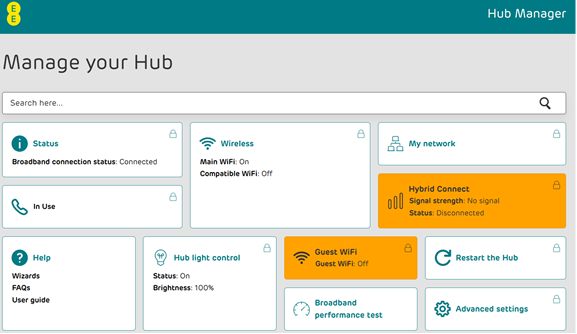
Navigate to the Port Forwarding, NAT, or Virtual Server section (often found under "Advanced Settings" or "Security").
You need to create two specific rules:
- Port Range: 9700 [cite: 11] (This is the Default Port ID; you can change this to whatever you prefer).
- Protocol: Both TCP and UDP
- Local IP: Enter your computer’s internal IP address (found via ipconfig as "IPv4 Address").
- Port Range: 8081
- Protocol: TCP/HTTP
- Local IP: Enter the same computer IP used above.
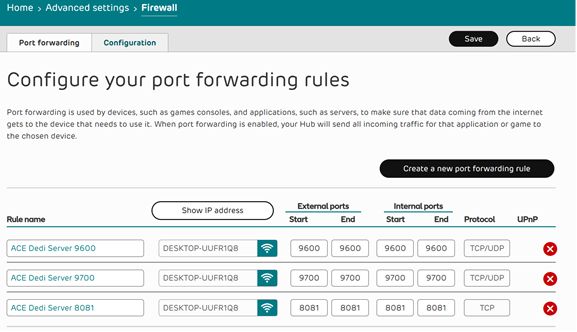
- Click Save, Apply, or Add Rule.
Click Here for BT Guide
BT Guidelines
- Open a Web Browser: Use any standard browser like Chrome, Firefox, or Edge.
- Enter IP Address: Type your router’s Gateway IP into the address bar.
- Login: Enter admin credentials found on the router sticker.
- Network Settings: Click on "My network" and navigate to "IPv4 Configuration".
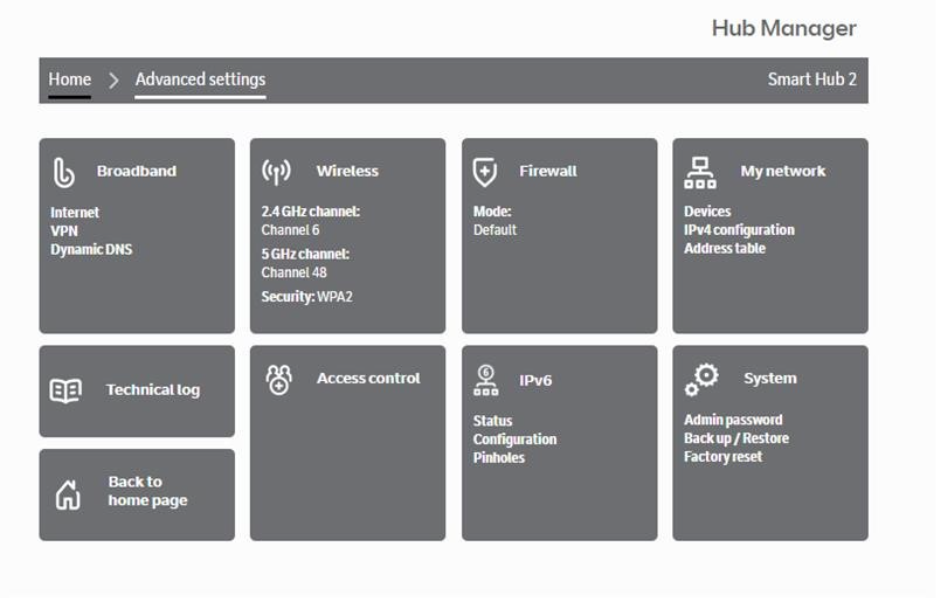
Navigate to Port Forwarding, NAT, or Virtual Server (usually under "Advanced Settings" or "Security").
Create these two rules:
- Port Range: 9700.
- Protocol: Both TCP and UDP.
- Local IP: Your computer's internal IPv4 address.
- Port Range: 8081.
- Protocol: TCP/HTTP.
- Local IP: Same internal IP used above.
- Click Save, Apply, or Add Rule.
Click Here for Virgin Media Guide
Virgin Media Guidelines
- Open a Web Browser: Use any standard browser like Chrome, Firefox, or Edge.
- Enter IP Address: Type your router’s Gateway IP into the address bar.
- Login: Enter your admin credentials (usually found on a sticker on the physical router).
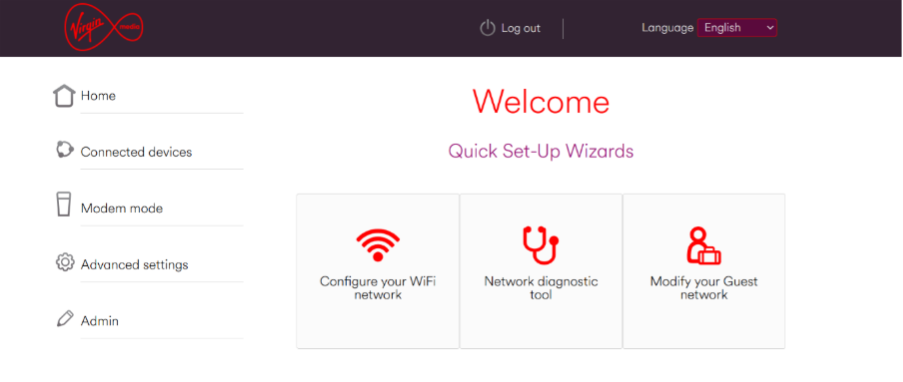
Navigate to Port Forwarding (found under "Advanced Settings").
You need to create two specific rules:
- Port Range: 9700 (Default Port ID; you can change this to whatever you prefer).
- Protocol: Both TCP and UDP.
- Local IP: Enter your computer’s internal IP address (found via ipconfig as "IPv4 Address").
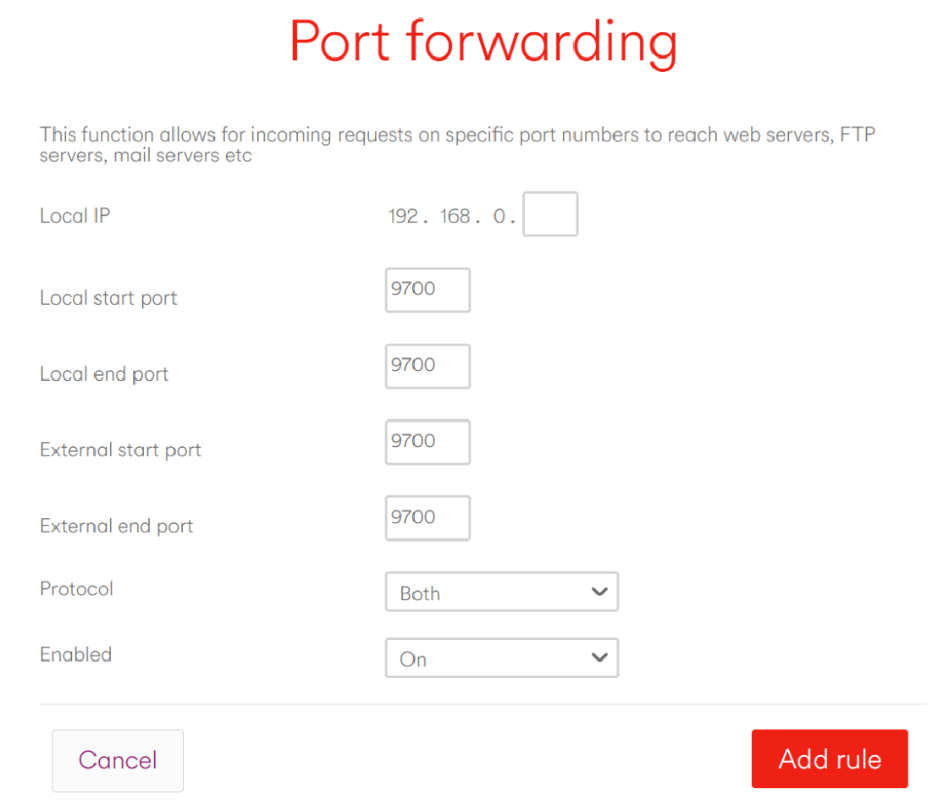
- Port Range: 8081.
- Protocol: TCP/HTTP.
- Local IP: Enter the same computer IP used above.
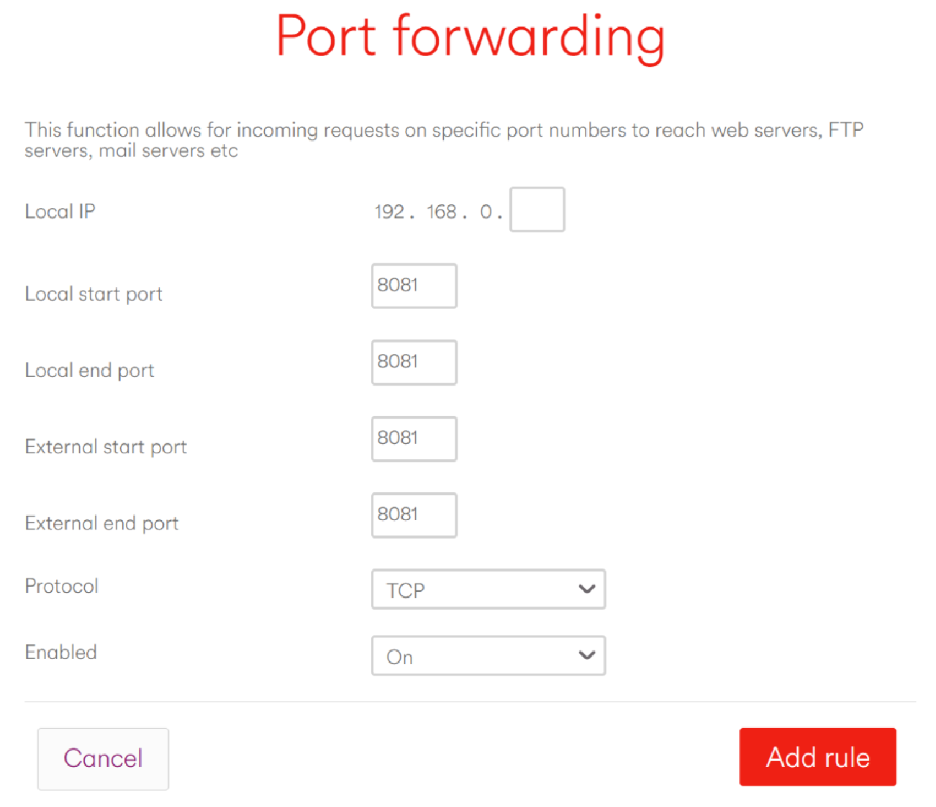
- Click Save, Apply, or Add Rule.
Click Here for Talk Talk Guide
TalkTalk Guidelines (Eero App)
- Download the Eero App: Install the app on your mobile device.
- Sign In: Log in with your TalkTalk/Eero account credentials.
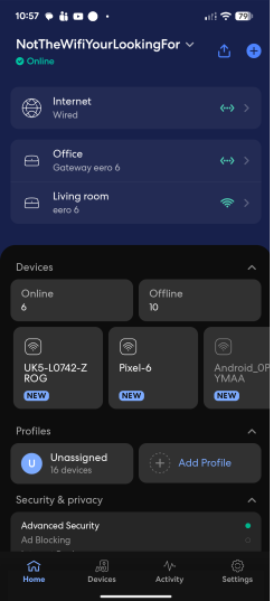
Navigate to the Port Forwarding section. You can find this by following: "Settings" > "Advanced Settings" > "Networking" > "Reservation & Port Forwarding".
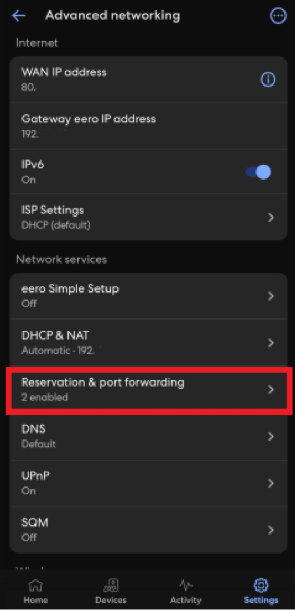
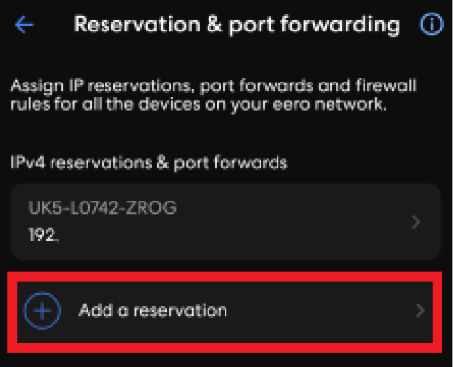
Select the specific device you want to create a reservation for, or manually enter the IP address.
Now, create the following two rules:
- Port Name: Evo Server Game Traffic.
- Port Range: 9700 (Default Port ID).
- Protocol: Both TCP and UDP.
- Port Name: Evo Server HTTP/API Traffic.
- Port Range: 8081.
- Protocol: TCP/HTTP.
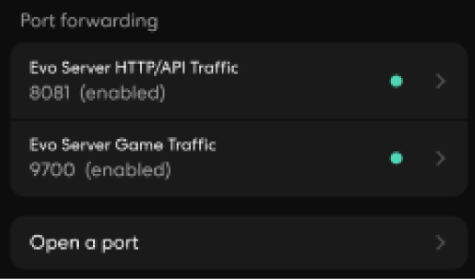
- Click Save to apply your new rules.
AC EVO Server Launcher Setup
Now that the Ports are open, you need to configure the actual game server software.
- Open Steam and navigate to your Library.
- Ensure "Games" and "Tools" are checked in the library dropdown.
- Type Assetto Corsa EVO into the search bar.
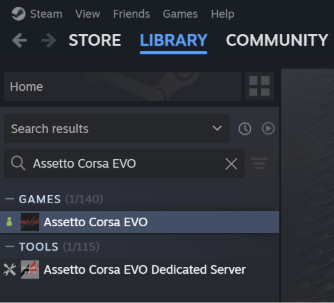
- Select Assetto Corsa EVO Dedicated Server and click Install.
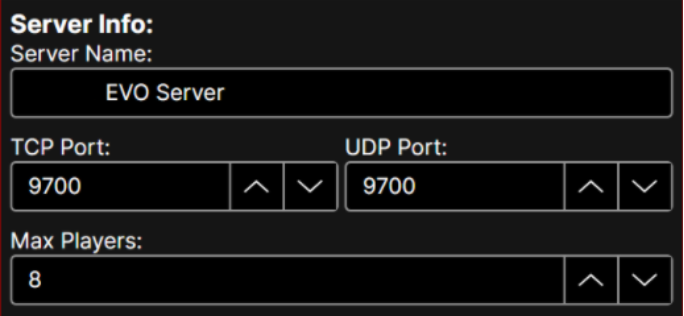
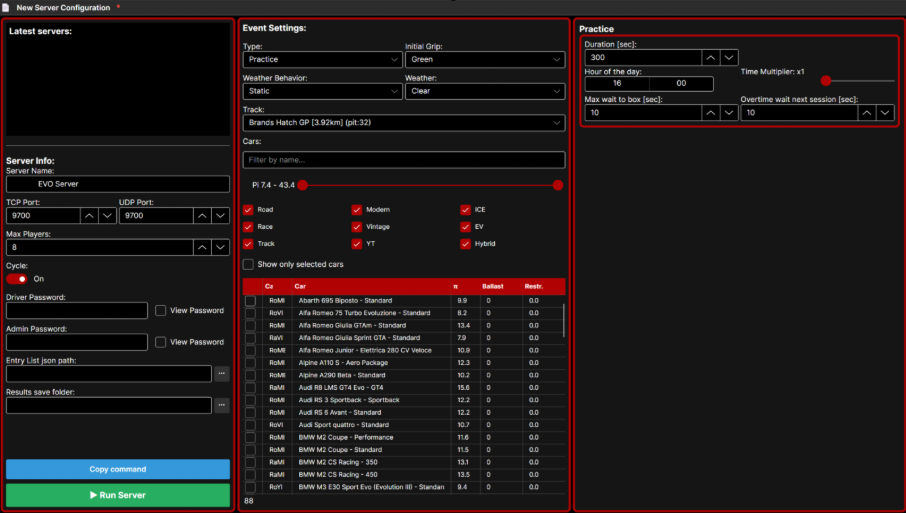
- Server Name: Type a recognizable name into the field.
- Connection Ports: Ensure the TCP and UDP ports match your router settings (e.g., 9700).
- Capacity: Adjust Max Players to fit your hardware and bandwidth.
- Security: Set a Driver Password for private races and an Admin Password to manage the server while driving.
- Select Track: Use the Track dropdown to pick your circuit.
- Surface Grip: Use Initial Grip to set traction levels. "Green" indicates a slippery, fresh track.
- Weather: Choose a preset (e.g., Clear). Select Static if you want conditions to remain the same.
- Filter by Category: Use the red checkboxes (Road, Race, Vintage, etc.) to narrow the list.
- Performance Index: Adjust the Pi slider to ensure evenly matched cars.
- Select Specific Cars: Check the boxes next to the vehicles you want to include.
- Balance of Performance (BoP): Add Ballast or Restr. to specific cars to balance their power.
- Set Duration: Input time in seconds (e.g., 300 = 5 minutes).
- Set the Clock: Choose the Hour of the day (e.g., 16:00).
- Time Progression: Adjust the Time Multiplier to speed up the day/night cycle
- Cleanup: Set Max wait to box to clear "AFK" players.
- Review: Ensure Cycle is "On" if you want the session to loop.
- Run Server: Click the green Run Server button.
- Monitor: A console window will pop up. Your server is live as long as it doesn't show an "Error".
- Save Profile: Save these settings in the launcher to avoid re-entering them.
- Verify: Open AC EVO and search for your server name in the Server Browser.
Was this article helpful?
That’s Great!
Thank you for your feedback
Sorry! We couldn't be helpful
Thank you for your feedback
Feedback sent
We appreciate your effort and will try to fix the article